Invoicing
You finish the job, and the next button converts it to an invoice.
The job's line items carry into the invoice. ORYX asks which date to use, and adds GST and QST.
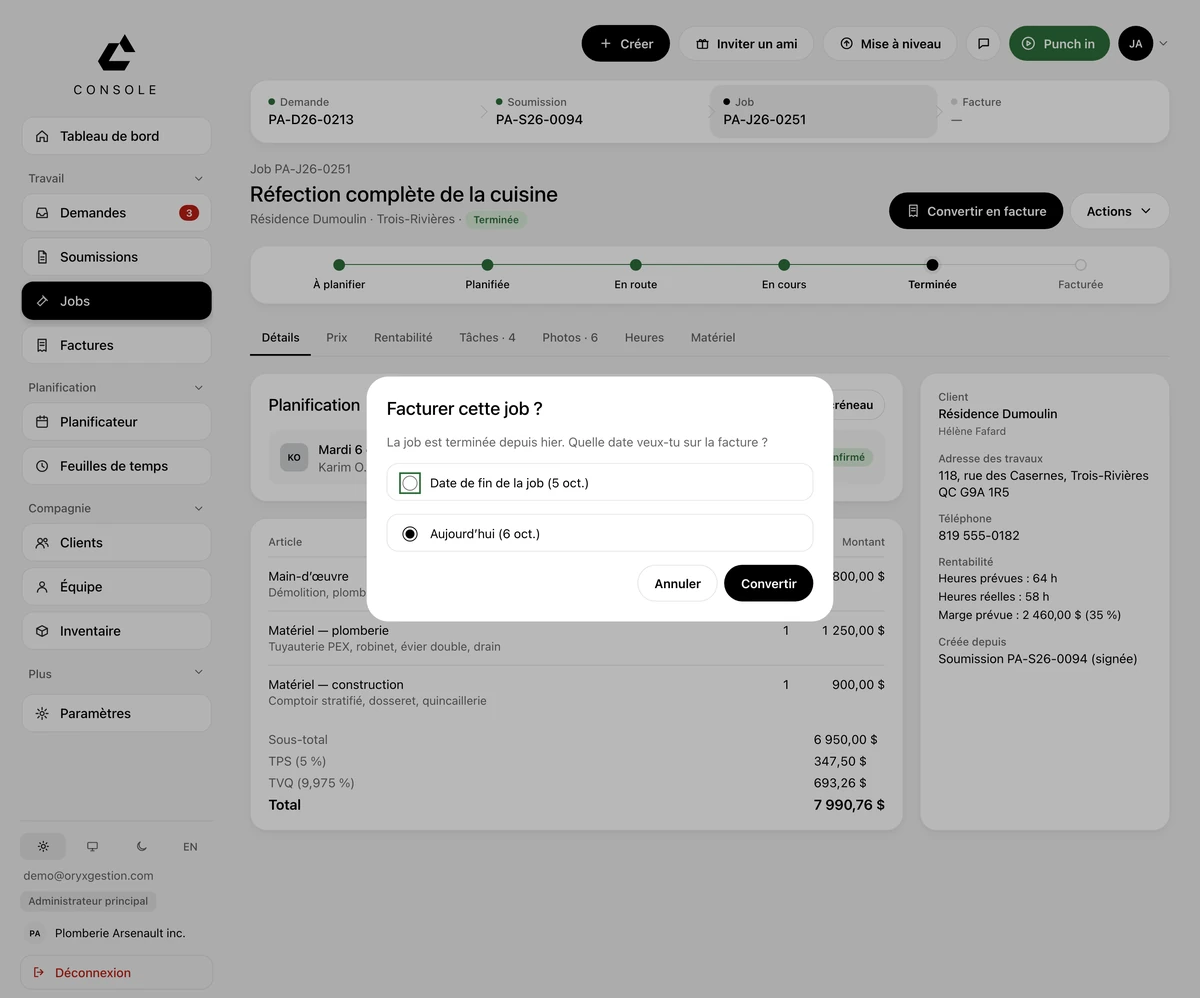
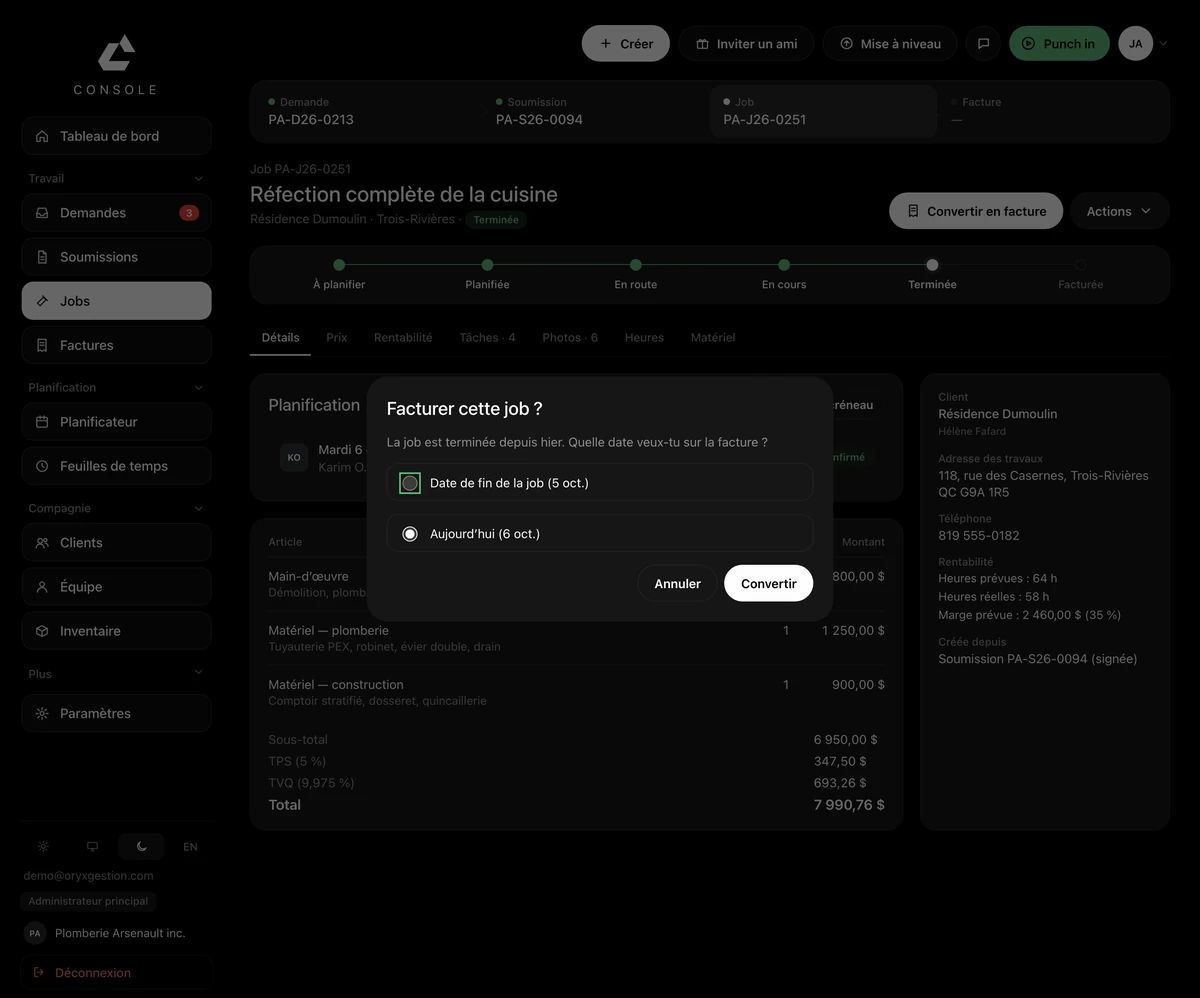
Convert to invoice
On a finished job, the main button on the sheet converts it to an invoice. The rest of the moves sit under Actions, right beside it.
You're asked for the date
A dialog opens: the job's end date, or today. You pick, you confirm.
The job's own lines
Labour in hours, materials line by line: the invoice carries the job's items, with the subtotal, GST and QST.
Send it, then record the payment
On the invoice, the main button sends it to the client, then records a payment once it has gone out. The payment link, the PDF and the credit note sit under Actions.
The chain stays on top
Request, quote, job, invoice: the four links sit across the top of the sheet. Every link already created is clickable — one click back to the quote.
Questions we get asked
- Does the invoice go out on its own when I convert?
- No. Sending is a separate move: on the invoice, the main button sends it to the client.
- Can my client pay online?
- Yes. The email carries a button to pay online. On the PDF, the how-to-pay box also gives Interac and cheque.
- What about my bookkeeping?
- There's a push to QuickBooks Online, and Acomba and Avantage exports.
Try it for 30 days.
$127 a month for up to 5 employees, in Canadian dollars plus tax. Card required, nothing charged for 30 days, cancel any time.