Timesheets
Your crew's week, day by day, through to the payroll export.
Every Punch in and every Punch out lands here. You look, you fix, you export.
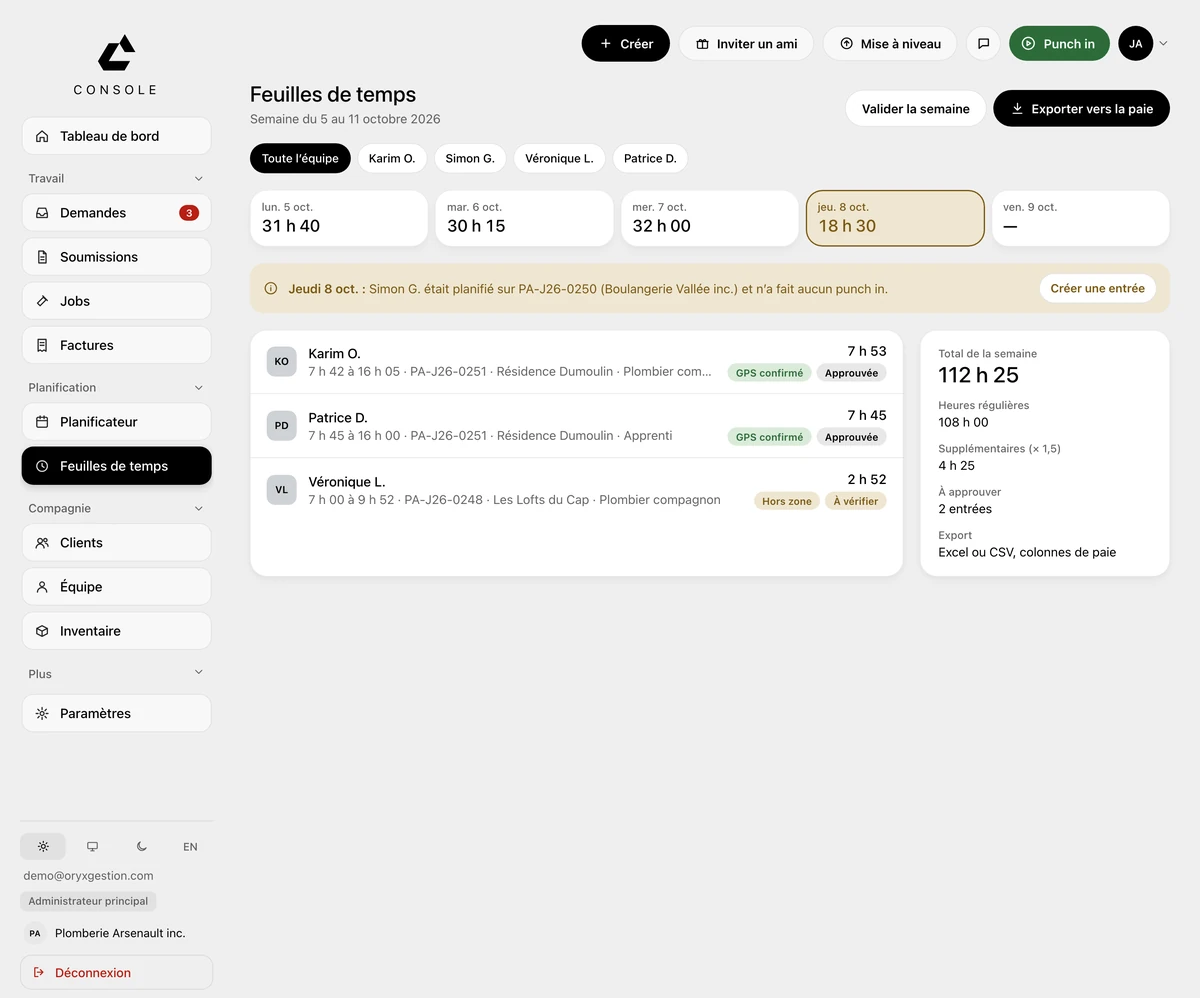
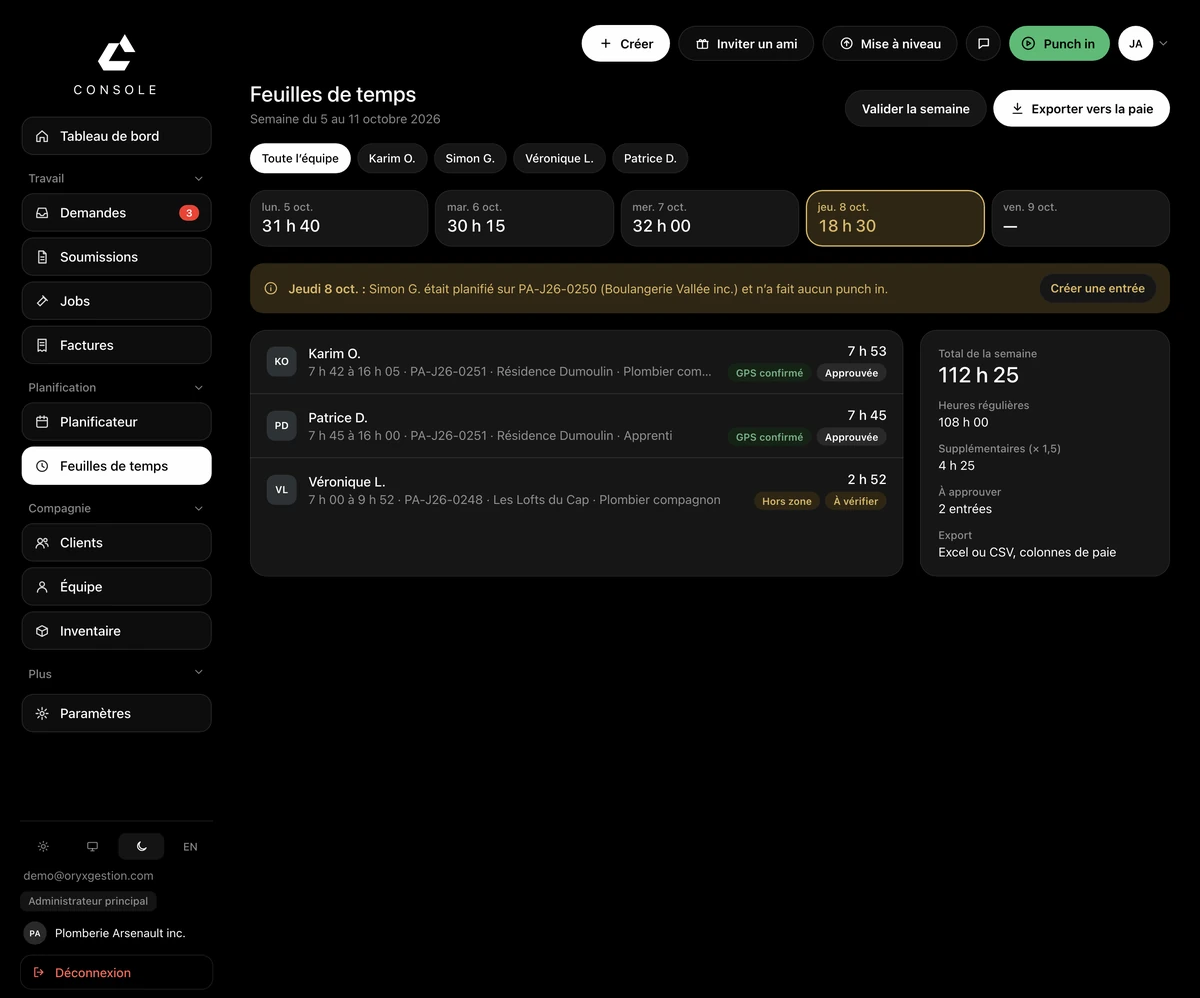
The week in tiles
One total per day. The incomplete day is outlined.
Scheduled, but no punch in
A banner names the worker, the day and the job. The button to create an entry sits right beside it.
A GPS status on every entry
Every entry carries its GPS status: confirmed, or out of zone.
Approved or to check
Every entry carries its status, and the count of entries waiting to be approved is on the right. The office fixes an entry and closes a forgotten punch.
Validate and export
Validating the week and exporting to payroll sit at the top of the screen. Regular hours and overtime come out separated, in Excel or CSV.
Questions we get asked
- One of my guys forgot to punch in. What do I do?
- If they were scheduled on a job, the banner for that day tells you, with a button to create an entry. Otherwise the office fixes the entry by hand and closes a punch left open.
- Can I see whether the punch was made on the job?
- Every entry carries a GPS status. You see which ones are confirmed and which ones are out of zone.
- How does it come out for payroll?
- You export to payroll. You get an Excel or CSV file with payroll columns, regular hours and overtime separated.
Try it for 30 days.
$127 a month for up to 5 employees, in Canadian dollars plus tax. Card required, nothing charged for 30 days, cancel any time.