Jobs
The job holds the visit, the hours, the photos and the materials.
A signed quote converts into a job. You place it on a worker; on the way and in progress light up when they say so.
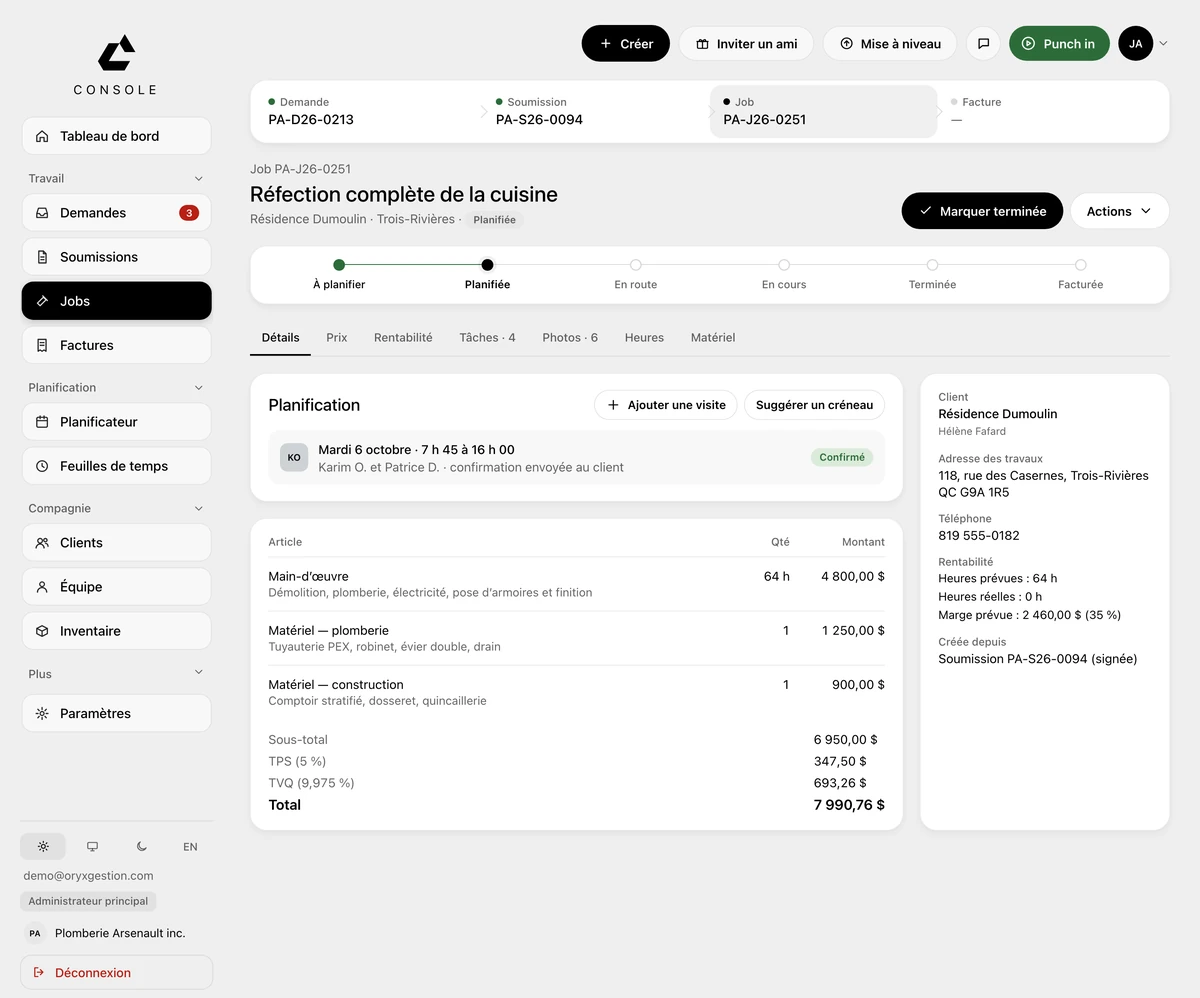
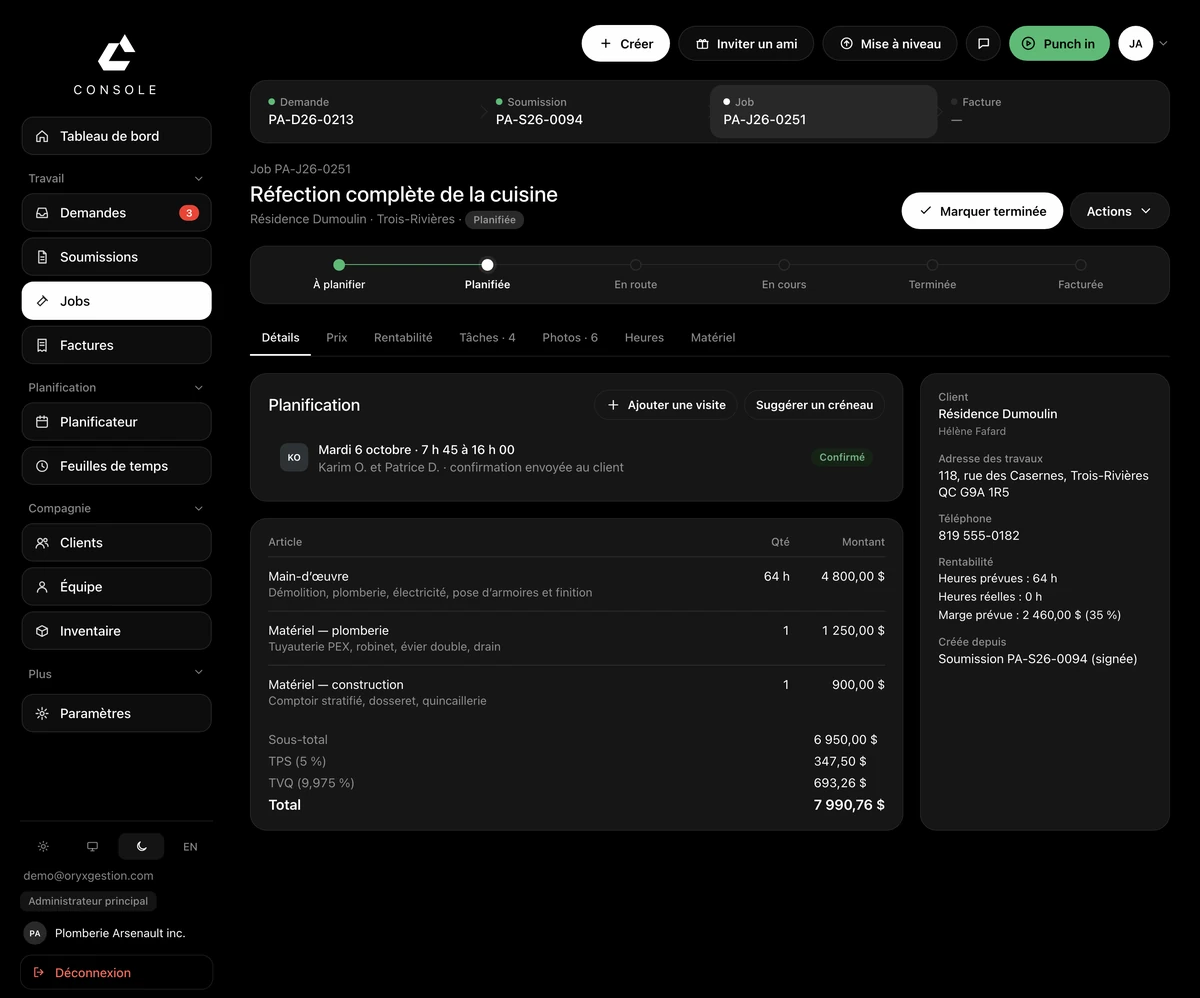
It comes from the quote
At the top, the Request, Quote, Job, Invoice chain, every link clickable. On the right, the signed quote it was created from.
The step bar
To schedule, scheduled, on the way, in progress, done, invoiced. Scheduled reads from the shifts; on the way and in progress, from the crew's updates on site.
The button changes with the step
Scheduled, the button marks the job done. Done, it converts the job to an invoice. The rest sits under Actions.
Seven tabs, one sheet
Details, pricing, profitability, tasks, photos, hours, materials. You stay on the job to see the photos or the hours worked.
The visit lands on someone
Adding a visit puts the date, the hours and the workers on the job. The visit shows in the scheduling block.
Questions we get asked
- Can I create a job without doing a quote?
- Yes. A service call skips the quote and becomes a job directly.
- What does my worker do with the job on their phone?
- On the scheduled day, the main button on the job in the field app is Punch in, then Punch out.
- Can I tell if the job is profitable?
- Yes. On the right of the sheet, the profitability block gives planned hours, actual hours and expected margin.
Try it for 30 days.
$127 a month for up to 5 employees, in Canadian dollars plus tax. Card required, nothing charged for 30 days, cancel any time.